Small, unexpected amounts on your bank statement can feel like tiny alarms going off—especially when the line item reads something vague like Google Services. If you’ve ever asked, “Why was I charged $2 for Google Services?” you’re not alone. These micro-charges are common, usually harmless verification holds, but sometimes they point to third-party billing or, rarely, fraud. This article walks you through how to identify a Google Services charge, where to check, what to say to your bank, and how to prevent future surprises.
What is a Google Services charge and why does it happen?
A Google Services charge is often a small authorization hold used to verify a payment card. When you add a card to Google Pay, sign into a Google account on a new device, or start a subscription through Google Play, Google (or a merchant using Google’s billing system) may place a tiny hold—commonly between $0.50 and $2.00—on your card. This hold confirms the card is active and that the payment method is valid. In most cases the hold disappears within a few days. For details on how verification authorizations work, see Google’s verification explanation.

Authorization hold vs. posted transaction
There’s a big difference between a pending authorization and a posted charge. A pending Google Services charge means the money is only reserved, not actually taken. A posted charge means the merchant settled the transaction and the funds left your account. If a pending hold becomes a posted charge and you didn’t approve a purchase, that’s when you need to act quickly.
Where these charges commonly come from
Not all items that say “Google” are direct Google purchases. Developers, app stores, and third-party services often bill through Google Play or Google Pay, and banks may shorten descriptors to something like “Google Services”. That’s why a game developer, streaming subscription, or in-app purchase can show up under that generic name on your statement.
If you’d like help auditing payment settings or cleaning up account access, a quick way to get gentle guidance is to reach out to Agency VISIBLE’s contact page—they can walk you through visibility and privacy steps without the agency-sell pressure.
Below is a practical, step-by-step guide to resolve or prevent these charges, written plainly so you can take fast action.
Yes. Fraudsters sometimes run micro-charges to verify stolen cards before attempting larger purchases. If you see a single small verification-like hold right after you performed a card action (like adding a card), it’s likely benign. If you spot multiple small charges, unfamiliar posted transactions, or activity on multiple cards, treat it as suspicious and contact your bank immediately.
How to recognize an authorization hold
A pending Google Services charge on your statement will usually be labelled similarly to: “GOOGLE *SERVICE”, “Google Play”, or “Google Pay” and show a small amount (commonly $0.50, $1.00, or $2.00). Your bank lists it as pending because it’s an authorization, not a final sale. Holds typically clear in 1–7 days, although exact timing depends on your bank. Some banks note that the verification authorization is automatically reversed once verification completes, for example see this bank’s explanation.
If the same small amount later appears as a posted charge, the merchant completed the settlement and you should investigate. That posted charge indicates money has left your account, and the dispute process becomes a priority if you did not authorize it.
Where to look first — the Google places that matter
Before you call your bank, check Google’s systems. Many people skip this step and call right away—sometimes unnecessarily. Log into the Google account connected to that card and look in these places:
payments.google.com
This is the central Payments Center. It lists payment methods, recent transactions processed by Google, and billing profiles. If the charge is visible here, Google likely processed it and you can start a refund or dispute from within Google’s interface.
Google Play purchase history
Open the Google Play Store and view your purchase history. Purchases and in-app charges appear here, and subscription billing dates are visible. If the $2 matches an entry, it’s most likely legitimate.
Google Pay devices & activity
If you’ve saved cards to phones or watches, visit the Google Pay devices & activity page to see which devices used the card. That can reveal accidental charges from a lost device or a shared household item.
Practical steps when you see a small Google charge
Follow these actions in order. They’re designed to solve the problem with minimal fuss:
1. Wait for the hold to clear (for pending charges)
If the bank lists it as pending, give it 1–7 days to clear. Authorization holds are routine and often disappear without intervention.
2. Check Google account records
Log into payments.google.com, Google Play purchase history, and the Google Pay devices page. Match amounts and dates. If the transaction is in Google’s records you’ll likely find an easy resolution or refund option.
3. Ask household members
Sometimes kids or partners make in-app purchases or sign up for trials. A quick ask can save time and avoid disputes.
4. Call your card issuer (if posted or unexplained)
If the charge is posted or you cannot find any trace of it in Google’s tools, call your bank. Have the date, amount, and descriptor ready. Request the issuer to block the card if you suspect fraud, open a dispute, and issue a replacement card if necessary.
How to talk to your bank and Google
Having the right words in front of you makes calls faster and more effective. Keep the details ready: date, amount, and the exact descriptor on your statement. If talking to your bank, say something like:
“Hello, I see a charge on my account for $[amount] on [date], listed as ‘Google Services’ (or similar). I did not authorize this charge and I have checked my Google payments and Play purchase history. Please freeze or block this card and open an investigation.”
For Google support, if the transaction appears in payments.google.com, use the refund or report an issue workflow on that transaction. If it’s not listed there, Google may be limited in what it can do and will likely direct you back to your card issuer. For information on reporting unauthorized transactions to Google, see Google’s unauthorized transactions page.
When it might be fraud
Fraud rings sometimes use micro-transactions to test cards. Red flags include:
- Multiple small charges across different cards or accounts.
- Charges that post without any record in your Google account.
- Unfamiliar descriptors or foreign merchant names that don’t match your activity.
If you see these patterns, contact your bank immediately. They can suspend the card and start an investigation. Many banks offer provisional credit while they look into the dispute.
Disputing a posted charge: step-by-step
If a Google Services charge posts and you didn’t authorize it, here’s what to do:
Gather evidence
Take screenshots of the bank statement showing the charge, the transaction date, and any relevant pages from payments.google.com or Google Play that show a lack of matching activity.
Call your issuer
Explain the situation and ask them to open a dispute. Note the case number and follow the issuer’s directions about forms or affidavits.
Use Google’s refund/dispute process if applicable
If the charge appears in your Google payment history, use Google’s refund or report-a-problem tools tied to that transaction. Keep records of all communications.
Escalate if necessary
If the dispute isn’t resolved and you truly believe the charge is fraudulent, consider filing a police report. Some banks require a police report for certain claims. Also consider contacting consumer protection agencies in your jurisdiction.
Preventive measures to avoid future surprises
Good habits lower the odds of mystery charges:
- Remove old or unused payment methods from Google and other apps.
- Enable two-factor authentication on Google accounts to prevent unauthorized card additions.
- Use virtual or single-use card numbers if your issuer supports them.
- Turn on bank notifications for every transaction so you catch odd charges immediately.
- Label cards in accounts so you remember which card is attached to which device or service.
Shared accounts and family settings
If you use family sharing, check family purchase settings. Kids can make in-app purchases quickly, and some trials convert to paid subscriptions that bill through Google. Checking family settings and requiring purchase approvals helps avoid surprises.
Understanding descriptors and third-party billing
Banks shorten merchant names for space and clarity, and processors sometimes replace merchant names with their own. A descriptor that reads “Google Services” might actually be a developer billing through Google Play or a third-party merchant using Google Pay. If you can’t find the charge in Google, try searching the exact descriptor online—often other people have reported the same string and found explanations.
Real-life example
A friend added a new credit card to their phone and saw a $1.00 pending charge from Google the next day. They called the bank, checked payments.google.com, and found a verification hold. It disappeared after two days. The key lessons: remove old cards you don’t use, check which devices have your cards saved, and don’t panic when you see a small pending hold.
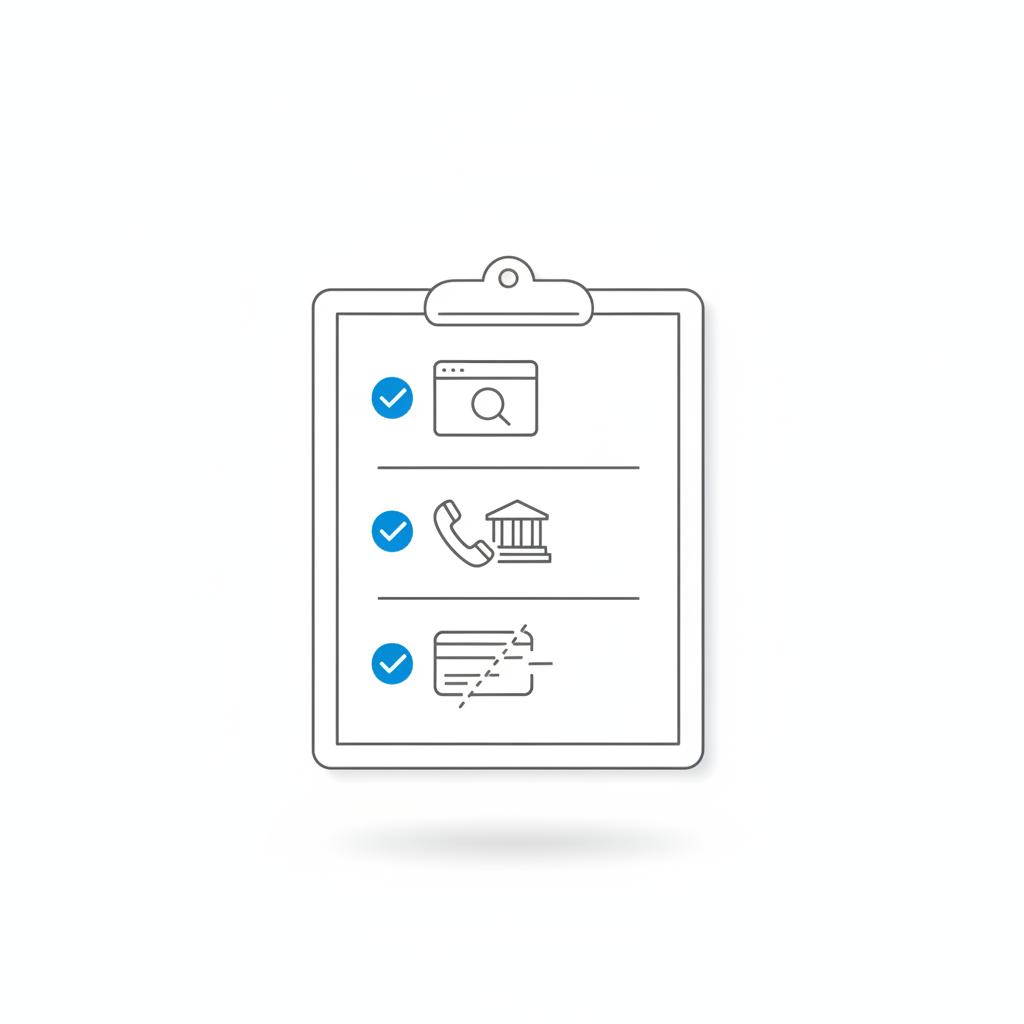
Checklist: What to do right now
When you spot a small Google-related charge, run through this checklist:
- Is it pending? Wait 1–7 days for a hold to clear.
- Check payments.google.com for the transaction.
- Check Google Play purchase history and Google Pay devices & activity.
- Ask household members about possible purchases.
- If posted or unexplained, call your card issuer and open a dispute.
- If the charge is in Google’s records, request a refund via Google’s tools.
What to tell support—copy-and-paste phrasing
To your bank: “Hello, I see a charge for [amount] on [date] listed as ‘Google Services’. I did not authorize this. Please freeze or block the card and open an investigation.”
To Google support (when the charge appears in payments.google.com): “I have an unrecognized charge for [amount] on [date] billed through Google. I’ve checked my payment activity and I don’t recognize this purchase. Can you help identify or refund it?”
When Google can and cannot help
If a charge shows up in your Google payments profile, Google can often issue refunds or reverse charges they processed. However, if the merchant used Google’s payment routing but the charge doesn’t appear in your Google account, Google’s ability to act is limited. In that case, your bank is the main channel for recovery.
Why ongoing monitoring matters
Micro-charges can be benign or a sign of card testing by fraudsters. Regularly checking your statements, turning on real-time alerts, and removing unused payment methods reduce risk. If multiple small charges appear across accounts, treat it as urgent and call your issuer right away.
Final quick tips
1) Keep payment methods organized and labeled. 2) Enable 2FA on Google accounts. 3) Use bank alerts and virtual card numbers where possible. 4) When in doubt, check payments.google.com before you call. 5) If you need help cleaning up settings or auditing access, a visibility-focused consultant like Agency VISIBLE can help with navigation and safety tips.

Most tiny Google-related amounts are verification holds that fade away. A posted charge you didn’t authorize needs immediate attention: gather evidence, call your bank, and use Google’s tools if the transaction appears in your payments profile. With clear steps and a calm approach, those puzzling $2 lines become manageable. A small logo beside contact info can help confirm you’re dealing with an official service.
Want a short printable checklist? Save this page or screenshot the action list earlier—it can speed calls to your bank when time matters.
Quick account audit—clean up payment settings fast
Need a quick account audit or help cleaning up payment settings? Get a friendly walkthrough from a visibility-focused team that helps small businesses and individuals tidy accounts and protect access.
Most tiny Google-related amounts are verification holds that fade away. A posted charge you didn’t authorize needs immediate attention: gather evidence, call your bank, and use Google’s tools if the transaction appears in your payments profile. With clear steps and a calm approach, those puzzling $2 lines become manageable.
Most of the time a $2 Google Services charge is a verification or authorization hold meant to confirm your card is active. These holds typically clear within 1–7 days and don’t become final charges. If the amount posts and you don’t recognize it, check payments.google.com and Google Play first—if there’s no matching activity, contact your card issuer.
If the charge posts, gather evidence (screenshots of the statement and your Google payment history), then call your card issuer immediately to open a dispute. Ask the issuer to block or replace the card and to provisionally credit your account if possible. If the transaction appears in your Google account, use Google’s refund or dispute tools as well.
Yes. Agency VISIBLE offers friendly, practical guidance for auditing account settings and payment methods. They can help you find which devices or accounts have saved cards and advise on privacy steps. For hands-on help, visit their contact page at https://agencyvisible.com/contact/ and request a walkthrough.